Rental management: from a property to a paid invoice
Four steps from an empty account to rent invoices that come out by themselves every month. Every step comes with a picture of what you actually see on screen.
Before you start
A Movira account. If you do not have one yet, write to us — we will set it up and send you a login link.
A list of properties and units: the buildings or plots, and the flats, commercial spaces and parking spaces in them.
The rents and contract dates that apply now. You do not have to type in old contracts — the ones in force are enough.
Tenant names and email addresses, if you want invoices to go out and tenants to reach their own portal.
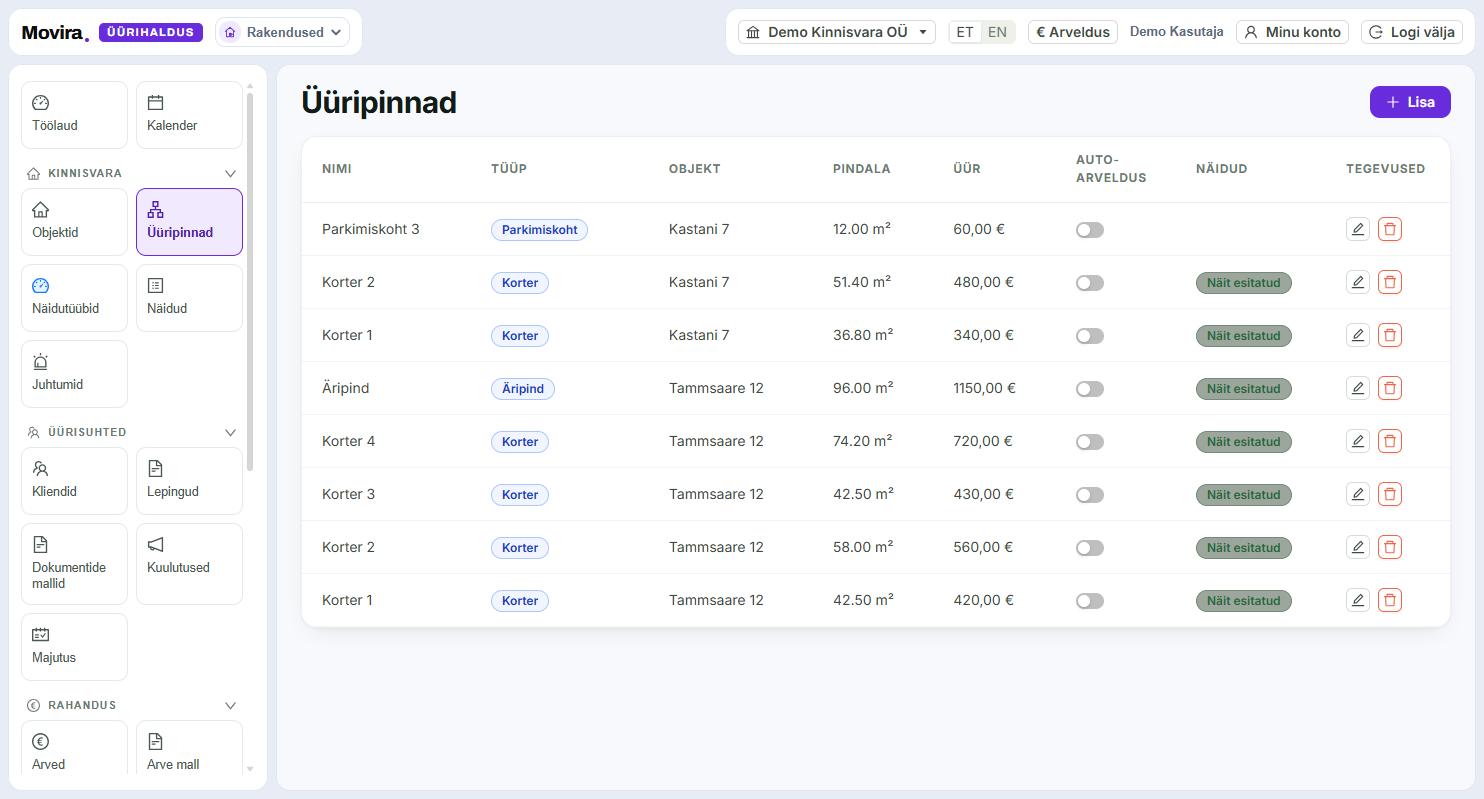
Two levels: a property is the building or plot, a unit is what actually gets rented out. Start with "Properties" and then add "Units" — each unit has a type (flat, commercial space, parking space), a floor area and a rent. The rent is the monthly rent in euros and invoice lines are built from it later, so it is worth getting right straight away. If an invoice should appear for that unit every month on its own, switch on "Auto-billing".
Units live under a property — so you never have to guess which "Flat 2" is meant when there are three buildings.
Meter readings belong to the unit: define the meter types (water, electricity, heating) once and units inherit them.
Parking spaces and storage rooms are units too. That way they end up on the same invoice.
An empty unit can be published as a listing whose link you can send to an interested party without them creating an account.
Step 2
Sign a contract with a tenant
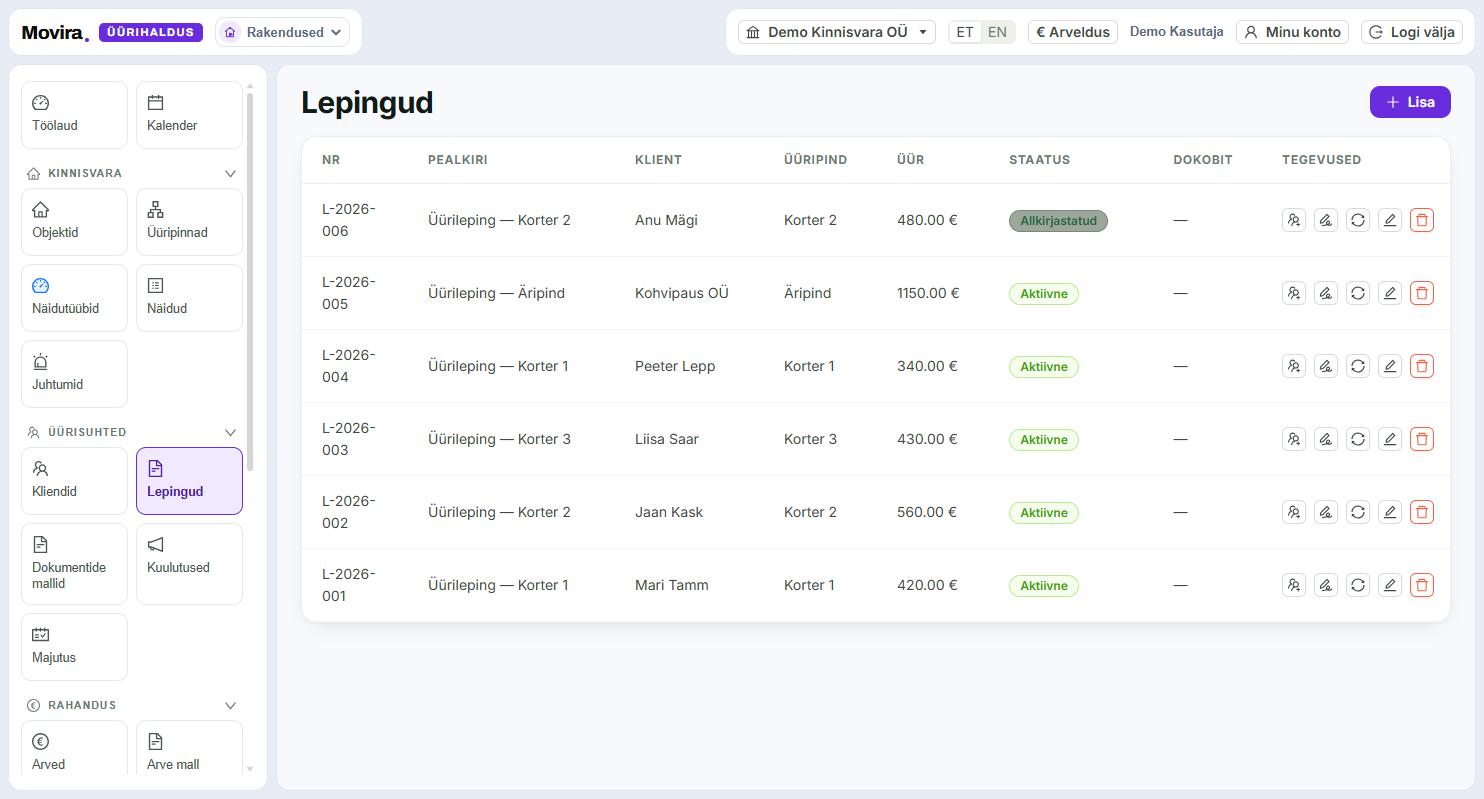
A contract ties a client to a unit: start and end date, rent, deposit. The client can be added from the same place if they do not exist yet. Two things come out of a contract: the basis for invoices, and a document. The document can be built from a template so you do not start from scratch every time, and handed to the tenant for digital signing — the signed contract stays attached to it.
The status says where the contract is: draft, out for signing, signed, active, ended.
Rent invoices come from active contracts; drafts and ended contracts produce none.
Extending a contract or changing the rent happens on the contract itself — no need to create a new one.
A tenant sees their contract, invoices and readings in the client portal, without anyone sending them separately.
Step 3
Create the rent invoices
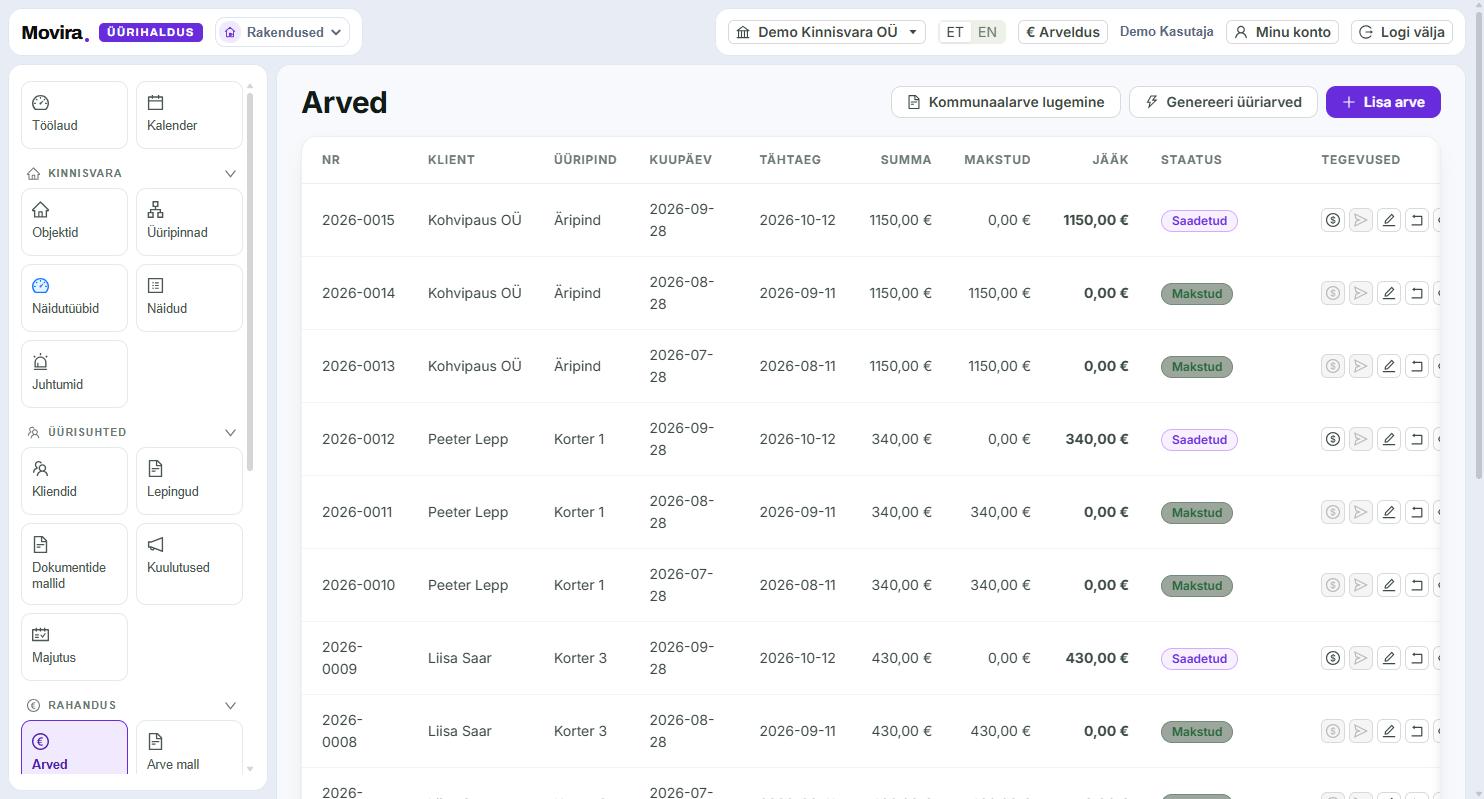
"Generate rent invoices" builds the month's invoices from every active contract at once — you pick the period and review the result. A single invoice is created with "Add invoice". Utility bills have their own path: "Read a utility bill" takes the supplier invoice and splits the amount between units, so you never open a calculator. In the table every invoice carries the amount, the amount paid and the balance — the balance is the number this page exists for.
The invoice goes to the tenant as a PDF and also stays in their portal.
A payment can be marked by hand or pulled from a bank statement.
An overdue invoice rises onto the dashboard by itself — no reminder has to go into a calendar.
Step 4
Keep track of what has been paid
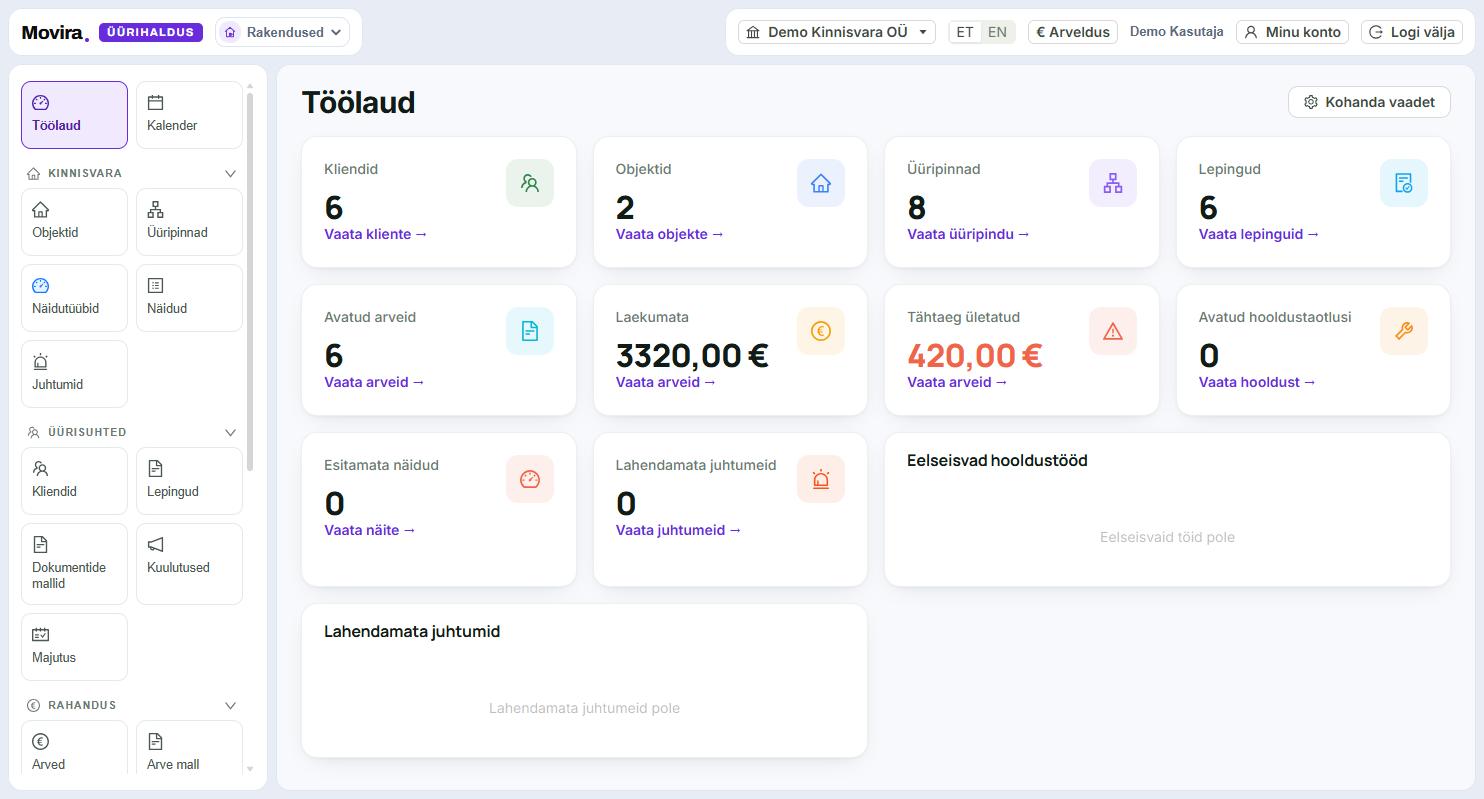
The dashboard gathers the numbers rental management exists for: how many clients, properties, units and contracts, how many invoices are open, how much is unpaid and how much of that is already overdue. Beside them sit missing meter readings, unresolved incidents and upcoming maintenance. Every card links straight through to where that work is done.
The numbers belong to the active account. You switch accounts from the name bar at the top.
"Overdue" is inside "Unpaid", not next to it — the same money, only late.
The cards are yours to choose: under "Customise view" keep the ones you actually look at.
Tips
What people usually trip over
No rent invoices appeared
Invoices only come from active contracts. Check that the contract is active and that the period you picked falls inside its term.
The rent on the invoice is wrong
The invoice takes the rent agreed in the contract, not the one on the unit. If the rent changed, change it on the contract — the rent on a unit is only a default for a new contract.
A tenant cannot reach the portal
The portal invitation goes to the email address stored on the client. Check the address and send the invitation again.
Meter readings are missing
Tenants can enter readings in the portal themselves. If that does not happen, a reading can also be added by hand under "Readings", unit by unit.
A utility bill was split wrongly
The basis for splitting (floor area, consumption, equal shares) is set per unit. Check on the reading which basis it used for that building.
I want to try things without messing up real data
Create a second account and switch to it from the top bar. Accounts cannot see each other's data.
The screenshots come from the working app on a demo account — no customer data appears here. They are in Estonian on the English page as well; the app itself speaks both languages and you switch at the top right.
Try it yourself
The hardest part is the first list of units and contracts. Once that exists, the invoices arrive every month on their own. If something stays unclear, write to us — a person answers, not a form.